13. Tools & Settings
Everything in this chapter lives behind the ⚙ button (ch. 1.3).
13.1 Collect Samples
⚙ → Tools → Collect Samples copies every sample the project references
into <project>/samples/ and re-points the project at the copies (relative
paths). Result: the project folder is self-contained — safe to move, zip,
back up or sync between machines. Requires a saved project; reports
Collected N samples to: … when done (plus any files it couldn't copy).
Run it whenever you've been auditioning files straight from a downloads folder or a sample-library drive.
13.2 Appearance — themes
⚙ → Appearance selects the UI theme preset:
- Cool Gray (default) — neutral dark gray with a cold touch
- Graphite — flat, fully neutral
- Indigo (classic) — the original PFA look
- Warm Graphite
- Lifted — lighter surfaces
Themes apply on restart (the app offers to restart right away). Semantic colors — meters, Solo gold, record red, Music/SFX tints — stay identical across presets.
13.3 Event Mixer & Restart
- Event Mixer opens the standalone mixer window (ch. 9.2).
- Restart App — confirm → clean stop → relaunch. With unsaved changes you get the standard Save / Discard / Cancel prompt first.
13.4 AI Automation Bridge (MCP)
⚙ → Automation → AI Automation Bridge (MCP) lets an AI copilot — Claude Code, or any MCP-capable client — drive the editor for you: create and author events, wire node graphs, import samples, mix, tune spatial settings, export, sync a running game and take screenshots of the UI. Authoring happens in the visible window — the same widgets move as if you were clicking, so you watch every step (and can record it); file operations (open/save, export, sync, packs) run dialog-free and report structured results.
The checkbox starts and stops the bridge immediately and is remembered for
future launches; the status line underneath shows
Running on 127.0.0.1:<port> while it's on. It is off by default.
Hooking up Claude Code
Register the bridge once per machine. With the app installed on macOS:
claude mcp add pfa-studio --scope user -- python3 \
  "/Applications/PFA Studio.app/Contents/Resources/automation/mcp_server.py"
On Windows, point it at
C:\Program Files\PFA Studio\_internal\automation\mcp_server.py (and use
python if python3 isn't on your PATH). Running from source, use
<repo>/automation/mcp_server.py. The helper is a small standalone script —
any Python 3.9+ works; it doesn't use the app's bundled runtime.
Then, in a new Claude Code session, just ask: "open my project and play the boss music", "build a three-level combat event from these WAVs", "export the project and sync the game" — the tools are discovered automatically.
- MCP clients cache the tool list when a session starts, so enable the bridge (or update Studio) before starting the session you want to drive it from.
- Studio itself can start or restart at any time — the connection details are re-read on every call.
- If two Studios run at once, the one that started last owns the bridge: it takes over the connection details, and the copilot's next call goes to it without announcing the change. Keep a single instance open while a copilot is driving, and ask it for editor status if in doubt.
Any other MCP-capable client registers the same way — e.g. OpenAI Codex:
codex mcp add pfa-studio -- python3 "<same path as above>".
What the copilot can do
54 tools, mirroring what you could do with the mouse:
| Area | Tools |
|---|---|
| Observe | editor status, event list & full event details (levels, clips, per-track settings), node-graph read, reverb-zone list, screenshots (window / node editor / mixer) |
| Projects | new, open, save, save as, project sample rate |
| Authoring | groups, events (music / advanced / SFX) incl. delete and move-to-group, tracks incl. per-level vs all-levels behaviour and music repeat count, sample import (WAV in place; MP3/OGG/FLAC/AIFF/M4A… auto-convert to an in-project WAV copy), levels, clip trim/fades/volume, event BPM & time signature, variation behaviour (play/switch chance, selection modes, chance fade), SFX randomization ranges (pitch / rate / delay / volume), SFX cooldown & voice limits |
| Node graph | sections, transitions, tempo nodes, stingers (incl. per-sample volume/weight), sub-levels & sub tracks, wiring |
| Mix & settings | event-mixer moves, master fader, track volume / M / S, spatial (Web & Godot tabs), reverb enable & send, reverb zones (create / edit / presets / start zone), intensity response curves, event fades, SFX loop modes |
| Delivery | preview play/stop, Export for Game (formats, rates, bitrate mode), Live-Connect sync, pack export & import |
| Recording | pacing control — slows the bridge's moves down so screen recordings are watchable |
Ground rules
- The bridge binds to 127.0.0.1 only and requires a random per-launch
token, which clients pick up from
~/.pfa_studio_automation.json(created with owner-only permissions while the bridge is on). Nothing is reachable from the network. - Copilot edits are real edits — the same as your own clicks, and the editor has no undo. Unsaved-changes gates stay in force (tools refuse rather than pop dialogs), but save deliberately.
- The bridge never opens modal dialogs: anything a tool can't do comes back to the copilot as a structured error.
13.5 Update notifications
Once a day, on launch, PFA Studio asks GitHub Releases whether a newer version is out. When one is, a New version available panel shows the release notes — the top highlight as a banner, the full changelog under it — with a Download page button. Nothing installs itself: you download and drag to Applications as usual.
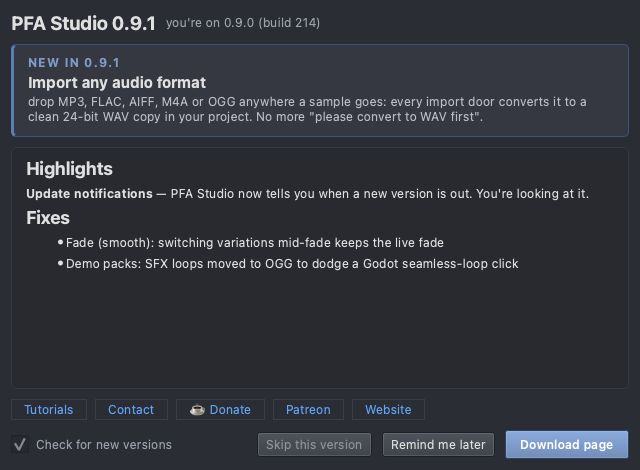
Closing is your choice:
- Remind me later — the panel returns on the next launch.
- Skip this version — silence until the release after that one.
Either way a quiet ↑ x.y.z available link stays in the status bar; click
it to reopen the panel any time.
The check is a single anonymous request (no account, no identifiers, one attempt per day) and fails silently with no network — the app never waits on it. Turn it off with Check for new versions — in the panel itself or under ⚙ → Info.
13.6 Files PFA writes
| What | Where |
|---|---|
| Projects | Wherever you save them — <name>/<name>.pfa + samples/ |
| Crash log (app) | ~/Library/Logs/PFA Studio/crash_log.txt |
| Crash log (running from source) | crash_log.txt in the repo |
| Editor preferences (last-used file-dialog folders) | ~/.pfa_editor_prefs.json |
| App settings (theme, pack author/license, EULA acceptance) | ~/.pfa_studio/settings.ini |
| Editor settings (incl. window geometry) & recent projects | ~/.pfa_studio/settings.json, recent_projects.json |
| Automation handshake (port + token, while the bridge is on) | ~/.pfa_studio_automation.json |
| Per-project sync settings | Inside the .pfa file itself |
13.7 Troubleshooting quick list
- App won't open ("PFA Studio" Not Opened) — click Done, then System Settings → Privacy & Security → Open Anyway, and Open Anyway once more in the dialog (1.2); needed once per build.
- No sound in preview — check the Out: device combo in the transport; system default may have changed.
- Export says FFmpeg missing (source runs only — the app bundles it) —
the repo copy resolves first; otherwise install via
brew install ffmpeg. - Game doesn't hear Sync — confirm the Sync Folder path (ch. 10.3) and
that the game loads that folder's
config.json. - Claude can't reach PFA Studio — turn on the bridge (13.4) and check the status line shows a port; then retry from the copilot side.
- Claude is missing recently added tools — start a new Claude session; the tool list is cached when a session begins.
- Something crashed — grab the crash log (13.6) and file an issue with it; the log contains the full traceback.