9. Preview & Mixing
9.1 Preview
Space plays the selected event through the same logic the engines use —
loops, level crossfades, node-graph routing, variations, play-chance dice
all behave as they will in the game, with the differences listed at the end
of this section. Start and Release fades (ch. 7),
SFX loop modes (ch. 7.3), a transition's own Quantize (ch. 6) and the
intensity curve are auditioned here too, so what you tune is what ships.
Switch level tabs or click sections in the Node Editor while playing to
rehearse transitions. Esc stops (a long or looping SFX preview too) — with a Release
fade authored, Stop rings the tail out first, as stop() will in-game.
Double-click a stinger node to audition it (ch. 6.6).
What preview intentionally does not reproduce — these are runtime behaviors of the game engines; audition them in the demo games or over Live Connect (ch. 10):
- spatial positioning, distance rolloff, distance LPF, Doppler (events preview dry and centered);
- intensity between its endpoints: preview triggers at full strength (1.0),
like a bare
trigger()in game, so you hear the top of the authored curve — the game is what passes the values in between; - reverb DSP (sends are authored here, heard in-game).
And a few places where the preview and the game engines differ by design or by construction — know them before you trust the preview for them:
- a level's first visit: the engines seed every level's variation and
play-chance dice at
play()and tick them all; the preview seeds a level the first time it is heard (ch. 3.3); - subs across a transition: the preview keeps a sub's switch as authored and restores it when you return to its section; the engines start every section entry with subs off (ch. 6.7);
- a click's route: clicking a section in the Node Editor (or a level
tab) takes the first route to it without rolling Probability or
Priority — the roll is a trigger's:
navigatein the game ranks the routes leaving the current section and rolls them (ch. 6.8); - per-player playback details: the curve of a Smart-loop seam
(ch. 7.3), the end of a one-shot's trimmed window in Godot (ch. 11.2),
and a Smart event whose clip is set to
one_shot— it plays once in the editor and on a flat web trigger, while emitters (web and Godot) re-arm it every cycle; - the level that already plays, requested while a switch waits (a
set_levelcall, ch. 3.3): the preview cancels the waiting switch and stays where it is; the engines ignore a request for the level they already play, so the waiting switch still lands. Through the node graph the rule is different:navigate()with the playing section's own trigger (ch. 6.8) enters the section again in the engines, and that entry replaces the waiting switch — the road it was waiting on is dropped, the section starts over if Restart on entry is set. The preview drops the waiting switch too, but does not re-enter (see the last bullet); - Stop pressed twice: a second Stop during a Release fade (ch. 7.2) cuts
the sound at once in the preview; in the engines a second
stop()starts the Release again from where the fade stands, so the tail runs its full length once more; - a terminal fade interrupted: switching away from a section while its terminal Fade Out (ch. 6.4) is running cancels the ending in the preview — the new section plays on; the engines let the ending run, so the event still stops when that fade would have ended;
- a section entered from itself: a road that leads a section back into itself, or its own trigger repeated, is a no-op in the preview — no restart, no stinger; the engines enter the section again, so Restart on entry starts it over and the road's stinger fires.
9.2 The two mixers
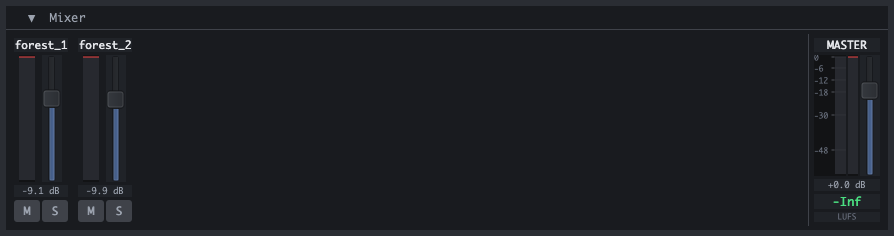
The Mixer panel — the collapsible strip at the bottom of the main window — is the track mixer of the selected event: one DAW-style channel strip per track (fader, meter, M/S) plus a MASTER strip with stereo metering and a LUFS loudness readout. It's where you balance layers inside an event.
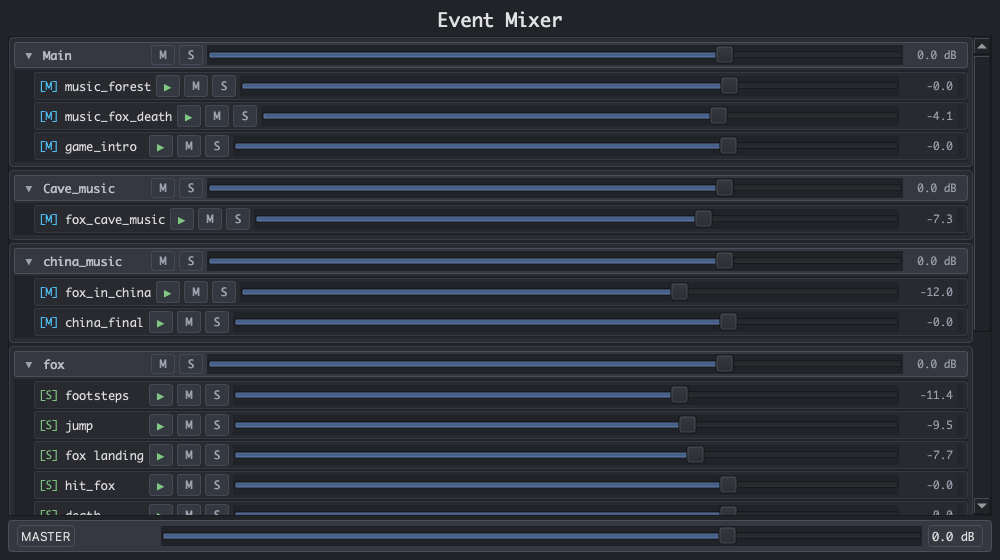
The Event Mixer window (⚙ → Event Mixer) is the project mixer: one
horizontal strip per event — type badge ([M] music / [S] SFX), name,
▶ preview, Mute, Solo, fader with dB readout and a mini peak
meter — with collapsible group headers (▼/▶) carrying their own M / S
and group fader. It's where you balance events and groups against each
other.
Fader behavior (all faders in PFA):
- Range −60 dB … +12 dB, unity (0 dB) at 75% of the travel.
- Double-click resets to 0 dB.
- Readout shows
+3.0/−6.5style values,-infat the bottom.
Meter colors on the bottom strip mixer: green up to −18 dB, yellow −18…−6, orange −6…−3, red above −3 dB, with a peak-hold line. The Event Mixer's mini meters are simpler by design — green/yellow/red, no hold — enough to see a strip is alive. The master strip adds an integrated LUFS loudness readout (green below −20, yellow −20…−14, red above −14 LUFS).
9.3 Mixing decisions that ship
Everything on these strips — event volumes, group volumes — is authoring data: it exports into the config (baked into rendered audio where possible, carried as gains otherwise). Mute/solo are session tools for your ears and do not export as muted audio; over Live Connect (ch. 10) event solo/mute and group mutes duck the running game in real time — soloing an event is the fastest way to audition one layer inside the real mix. Group solo is local Studio monitoring (ch. 10 lists exactly what travels).