10. Live Connect
Mixing against your memory of the game is guesswork. Live Connect puts PFA Studio and a running game on a WebSocket so authoring changes land in the game in real time — fader moves, level switches, mutes/solos — while you play it.
10.1 Starting it
Click 🔴 Live in the transport. The button turns green (🟢 Live) and
the status bar confirms Live Connect started on port 9264. When a game
connects, the button shows the client count — 🟢 Live (1).
The PFA engines connect automatically in development builds when Live
Connect is enabled on their side (ws://localhost:9264); see the engine
integration docs of your platform. Both demo games ship with it wired.
If the port is busy the status bar says so — usually a second Studio instance already running.
10.2 What flows over the wire
While connected, the editor broadcasts your mix moves:
- volume — event faders, group faders and the master, from the Event Mixer window (ch. 9.2). The bottom strip mixer rides tracks inside the selected event; track levels are baked at export, not sent live;
- mute — per event; a group mute is fanned out over its members;
- solo — solo ducks everything else in the running game, the fastest "what is this layer doing" tool there is. Games have no solo concept of their own, so Studio translates it into ducks; group solo stays in Studio;
- level switches — click level tabs in Studio, hear the game change.
Direction is editor → game: you play the game normally and sculpt from Studio.
Structural edits don't travel live. New events, renames, moves, added
tracks — the running game learns about them on Sync (10.3), which
re-exports config.json and tells the client to reload the whole pack.
Live messages address an event by its exported key, so a rename mid-session
parks that event's faders until you sync.
10.3 Sync — one-click export
Live Connect tweaks gains in memory; Sync makes the state real on disk.
The Sync button runs an incremental export into your configured game
folder and tells connected clients to reload: Syncing… → ✅ Synced!.
Configure the target once in ⚙ → Export → Sync Folder…:
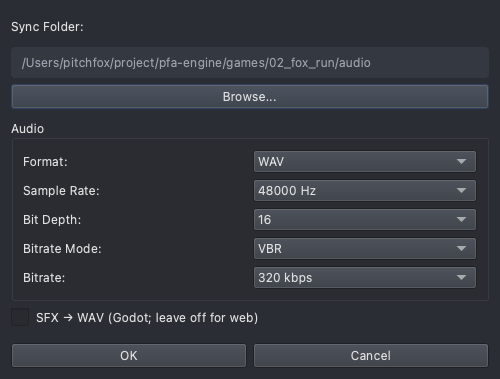
- Sync Folder — usually your game project's audio folder (e.g.
game/audio/). - Audio — format / sample rate / bit depth / bitrate mode + bitrate, and the same SFX → WAV switch as the export dialog (ch. 11.3). These persist in the project.
- The dialog shows the last sync time.
Sync is incremental: a content hash per sample (source bytes + settings + volume) means unchanged files are skipped — re-syncs after a small tweak take a moment, not a re-encode of the whole project. The status line reports what was newly encoded, skipped and removed.
⚠ Author against the loose config.json, not a .pfabank. Mix moves
reach a bank-loaded game fine, but Sync only ever writes loose files
(ch. 11.4) and the reload that follows re-reads config.json from wherever
the pack was loaded. A game booted from a bank has no such path: the Godot
client logs nothing to reload and keeps playing, while the web client
stops the audio and then fails to fetch. Load the folder in dev builds and
ship the bank in release — or point the client's pack path at the loose
config before syncing.
10.4 A working rhythm
- Start the game (dev build), press 🟢 Live.
- Play; solo events, ride faders, switch levels until it feels right.
- Press Sync — the mix is now on disk and the game reloaded it.
- Commit your game repo; the audio folder is part of the game.