1. Getting Started
1.1 What PFA is
PFA replaces the "export a stereo loop, hope for the best" workflow with an
adaptive one. In PFA Studio you build events — a piece of interactive
music with intensity levels and transitions, or a sound effect with
variations, randomization and spatial behavior. Export for Game writes a
folder of encoded audio plus a config.json describing all of it. In the
game, the PFA Engine (JS for web, GDScript addon for Godot) loads that folder
and your code stays tiny:
PFA.play("music_forest")            # start the music event
PFA.set_level("music_forest", 2)    # raise intensity
PFA.trigger("footsteps")            # one footstep, auto-varied
pfa.play('music_forest');
pfa.setLevel('music_forest', 2);
pfa.trigger('footsteps');
Everything you author — fades, probabilities, loop lengths, attenuation curves — lives in the exported config, not in game code. Change the mix, re-export (or press Sync), and the game sounds different without touching a line of it.
1.2 Installing
PFA Studio is in public beta on macOS and Windows. It has been tested on macOS 26 (Tahoe) and macOS 27.0.1 on Apple Silicon and on Windows 10 (22H2, 64-bit). The license terms are shown on first launch and stay one click away under Help → Beta License (EULA); this manual describes the product, not the terms.
macOS
- Download
PFA-Studio-<version>.zipand unzip it. - Drag PFA Studio.app to Applications (or run it from anywhere).
- Double-click to launch. Beta builds aren't signed with an Apple Developer ID yet, so the first time macOS stops the app with "PFA Studio" Not Opened — click Done (not Move to Bin).
- Open System Settings → Privacy & Security and scroll to Security: next to "PFA Studio" was blocked to protect your Mac, click Open Anyway.
- macOS asks once more — Open "PFA Studio"? — click Open Anyway (and confirm with your password or Touch ID if asked).
This is needed once per build — a new version asks again; after that it launches normally.
Windows
- Download and run
PFA-Studio-Setup-<version>-win64.exe. - Follow the installer (it associates
.pfaproject files on the way). - Launch PFA Studio from the Start Menu. If SmartScreen objects to an unsigned app, choose More info → Run anyway once.
On Windows 11 with Smart App Control on, Windows blocks unsigned installers and has no way to allow a single app. Installing means turning it off under Windows Security → App & browser control → Smart App Control settings; recent Windows updates let you turn it back on later without reinstalling Windows.
If anything goes wrong, the app writes a crash log — attach it to a bug report:
- macOS:
~/Library/Logs/PFA Studio/crash_log.txt - Windows:
%LOCALAPPDATA%\PFA Studio\Logs\crash_log.txt
1.3 The main window
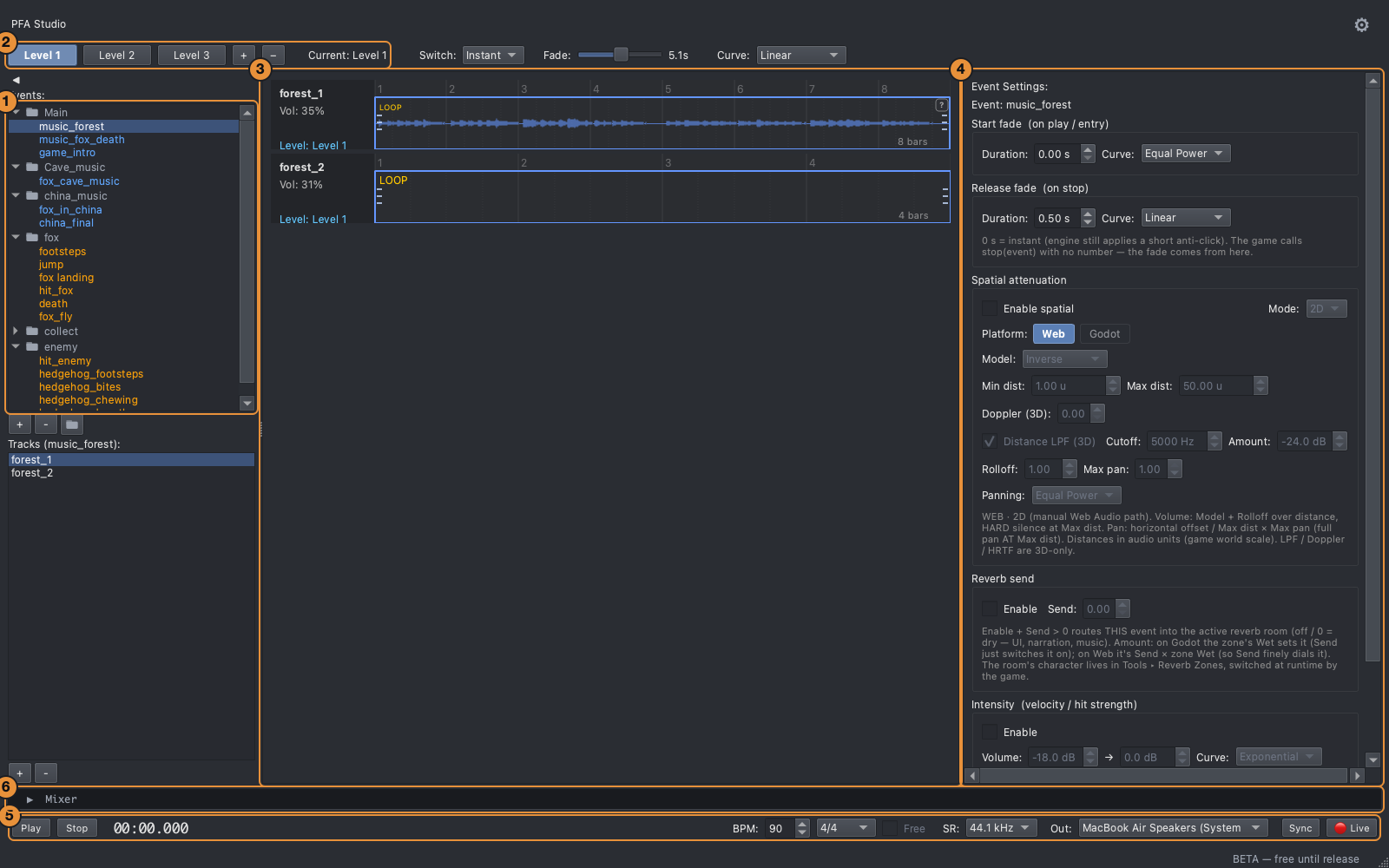
| # | Area | What it does |
|---|---|---|
| 1 | Events | Every sound in the project — music and SFX, organized into groups (ch. 2) |
| 2 | Levels bar | The selected event's intensity levels + level-switch fade controls (ch. 3) |
| 3 | Timeline | Tracks and waveforms of the current level; trim, loop and fade clips here (ch. 4) |
| 4 | Inspector | Event Settings for the selected event, or Track Details when a track is selected (ch. 5, 7) |
| 5 | Transport | Play/Stop, position, tempo, sample rate, output device, Sync and Live Connect |
| 6 | Mixer panel | Collapsible track mixer for the selected event, with a master strip and LUFS metering (ch. 9) |
All project commands live behind the ⚙ button in the top-right corner (the menu bar only carries the standard macOS About entry and a Help menu — manual, online docs, licenses, bug reports):
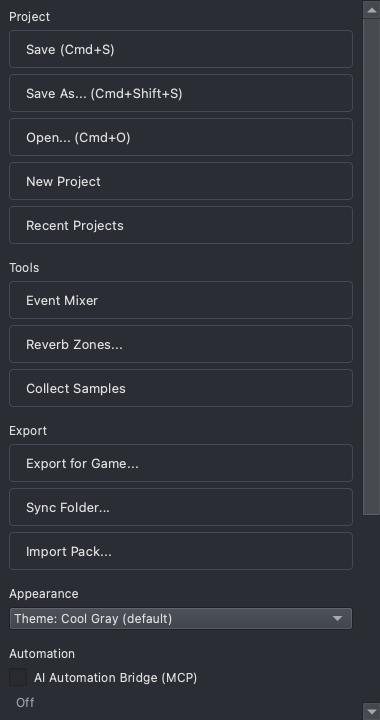
- Project —
Save (Cmd+S),Save As… (Cmd+Shift+S),Open… (Cmd+O),New Project,Recent Projects - Tools —
Event Mixer,Reverb Zones…,Collect Samples - Export —
Export for Game…,Sync Folder…,Import Pack… - Appearance — theme preset (five presets, applied on restart — see ch. 13)
- Automation — the AI Automation Bridge toggle (drive the editor from Claude Code — see ch. 13.4)
- Info — license status, the Check for new versions toggle (ch. 13.5), About, manual and online documentation
- Bottom row —
Restart App
1.4 Projects
A PFA project is a folder: MyGame/MyGame.pfa plus a samples/ directory
next to it. The .pfa file is JSON — friendly to git and to backups.
- New Project starts an untitled project with one Music and one SFX event to explore, at 48 kHz.
- Save the first time acts as Save As and creates the
<name>/<name>.pfafolder layout. - Open reads
.pfa(and legacy.amp) files; recently used projects are in Recent Projects. - The window title shows the project name with a dirty marker while there are unsaved changes (macOS shows a dot in the close button). Closing, opening another project or restarting with unsaved edits asks Save / Discard / Cancel — you can't lose work silently.
Sample paths are stored relative to the project folder whenever the files
sit inside it. Run ⚙ → Tools → Collect Samples to copy every referenced
file into <project>/samples/ — after that the project folder is fully
self-contained and moves between machines (or into a cloud folder) safely.
Collect Samples requires the project to be saved first.
1.5 Transport

| # | Control | Notes |
|---|---|---|
| 1 | Play | Space toggles. Previews the selected event as the engines will play it — with the differences ch. 9.1 lists |
| 2 | Stop | Esc also stops; ends a long or looping SFX preview too |
| — | Position | MM:SS.mmm |
| 3 | BPM | 60–200. The event's default tempo; node-graph sections can override it with a Tempo node (ch. 6) |
| 4 | Time signature | 4/4 3/4 6/8 2/4 5/4 7/8 or Custom… (any beats-per-bar 1–32 over 2/4/8/16) |
| 5 | Free | Free-tempo indicator — the loop follows file length instead of a BPM grid and the timeline switches to seconds. Free tempo is authored per section with a Tempo node (ch. 6); in Simple mode this box is read-only |
| 6 | SR | Project preview sample rate, 44.1/48 kHz. Source files are never modified; export quality is chosen separately at export time. New projects default to 48 kHz |
| 7 | Out | Output device for preview |
| 8 | Sync | One-click incremental export to your game folder (ch. 10–11) |
| 9 | 🔴 Live | Live Connect — real-time parameter sync with a running game on port 9264 (ch. 10) |
1.6 Keyboard shortcuts (main window)
| Shortcut | Action |
|---|---|
Space |
Play / Stop |
Esc |
Stop |
Cmd+S |
Save |
Cmd+Shift+S |
Save As |
Cmd+O |
Open |
Delete / Backspace |
Remove selected track (when the track list has focus) |
Ctrl+wheel |
Zoom the timeline (1–8×) |
The node editor adds its own shortcuts — see ch. 6.
1.7 Where to go next
- Building interactive music? Read ch. 3 (Levels) and ch. 4 (Tracks), then graduate to ch. 6 (Node Graph).
- Designing SFX? Read ch. 4 and ch. 5 (Variations), then ch. 7 for loops, spatial and intensity.
- Ready to ship? Ch. 11 (Export) and ch. 10 (Live Connect) close the loop with your game.